Customize your content types
Every brand starts with four content types: Blog Post, Wiki Article, Documentation, and Changelog. You can restyle any of them, or create your own types, each with its own section on your public site.
Where it lives
On the dashboard, the CREATE grid is also the type manager. Hover any tile and click the pencil to customize that type, or use the dashed New content type tile to add one.
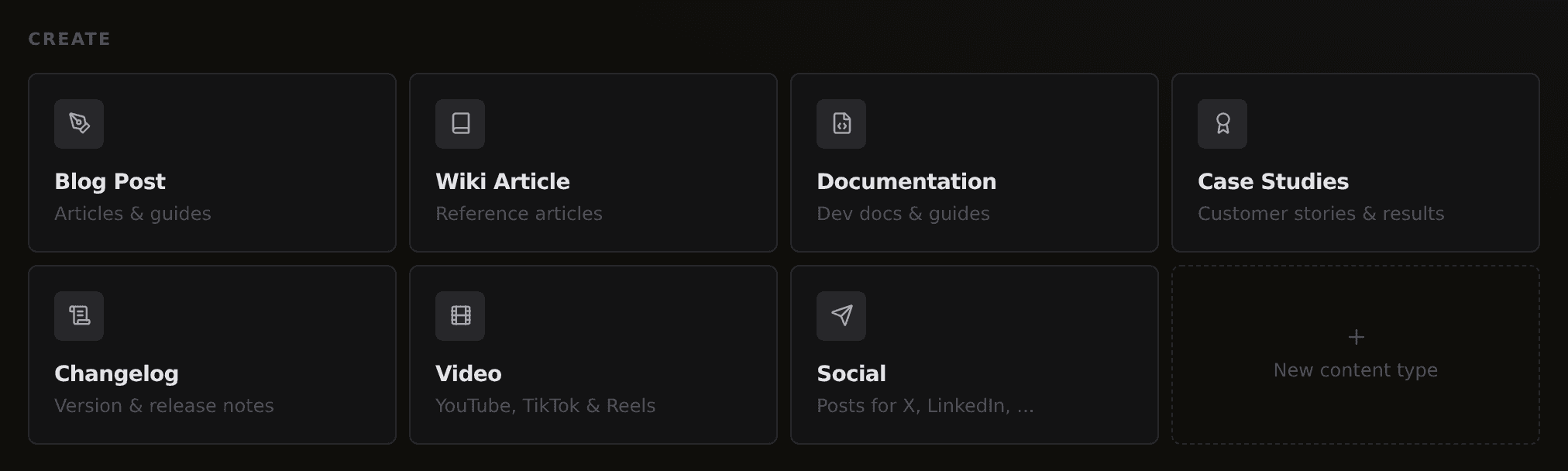
Creating a custom type
Click New content type and give it a name, say Case Studies. The editor fills in a URL path for you (case-studies), which you can adjust before saving.
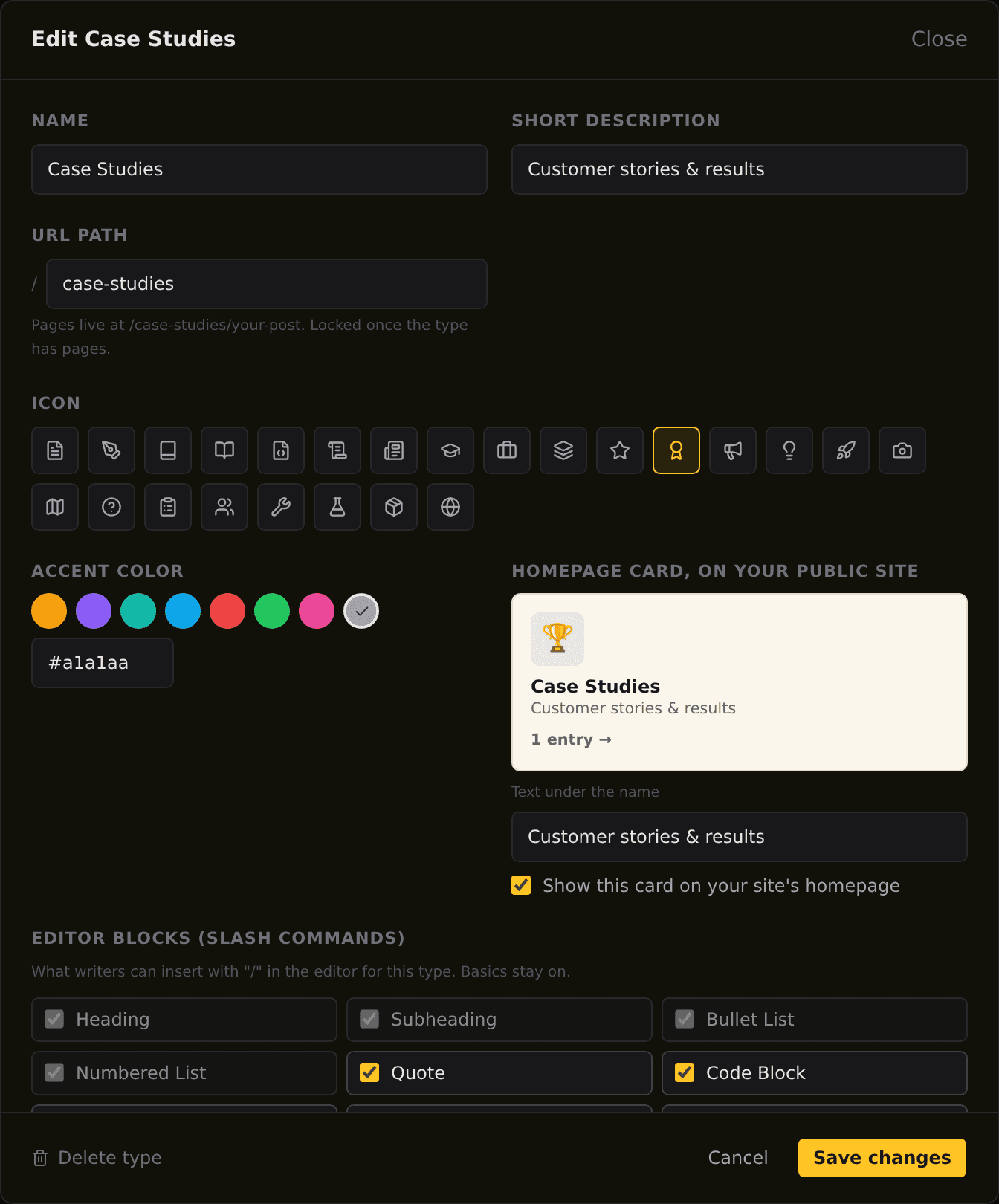
What each setting controls:
Name and description appear on the dashboard tile and, by default, on your site's homepage card.
URL path is the section your pages live under: yoursite.com/case-studies/your-post. It locks once the type has pages, so live URLs can never move by accident.
Icon and accent color style the type everywhere. The icon you pick also sets the matching symbol on your public homepage card, shown in the live preview.
Homepage card controls how the section appears in the Explore area of your site's homepage. Untick it to keep the section reachable but off the hub.
Editor blocks choose which slash commands writers get for this type. Structural basics stay on; everything else is yours to trim.
Structured data sets the schema.org markup every page of the type carries automatically, plus the extra presets writers see as recommended in Content Enrichment.
Click Create type and the new tile appears in the CREATE grid. From there it behaves like any built-in type: the same editor, categories, SEO enrichment, scheduling, and publishing.
Customizing a built-in type
The pencil on a built-in tile opens the same editor with the routing locked: you can rename Blog Post to Insights, change its icon, color, homepage card, editor blocks, and recommended structured data, but its URLs stay put. A customized built-in shows a Reset to default action that restores the original look and settings.
Removing a type
A custom type can be deleted only while it has no pages; otherwise every published URL in its section would break. Archive or delete its pages first, or untick Type is active to hide the type without touching its content.
Want to try this on your own site?
Everything in this guide runs from one studio: connect your domain, publish, and the SEO side is done for you.