Add a blog to a GoDaddy website
By BeeRanked · November 16, 2026
GoDaddy's website builder has a blog built in, which puts it ahead of Canva, Carrd and Adobe Portfolio. The question is whether that blog does what a blog meant to bring search traffic has to do, and GoDaddy's help centre answers most of it. Every GoDaddy fact below is from godaddy.com, read on 11 October 2026; the help articles still carry the product's older name, Websites + Marketing.
What the built-in blog does
The help article on creating posts describes it: "you write content based around a topic or keywords, format it and add a photo. All that's left is to publish now or schedule it for later" (GoDaddy help). Posts have a featured image, a title that "must be less than 65 characters", and categories, which "allow you to create multiple blogs on your website". Scheduling is there: "select Schedule, and then select a date and time". Posts show in a blog section on a page, with the limit that "You can add one blog section per page" (GoDaddy help). Subscribers can get an email when a post goes out, and the section can show an outside blog instead: "select External blog feed and enter the feed URL of that blog".
Prices on the product page, read from the page itself, start at $9.99 a month for Starter billed annually ($19.99 monthly), with Professional at $24.99 and Ultimate at $99.99 a month billed annually (GoDaddy Website Builder). The help centre says a domain needs a paid plan: "If you're on a Websites + Marketing free trial, you'll need to sign up for a paid plan before you can connect your website to a domain" (GoDaddy help); the newer product page's FAQ says "You can connect your own domain to any published project", so check which applies to your account.
What we could not find
We looked for four things a search-driven blog needs and found no help article for any of them: an outbound RSS feed for the blog, a custom URL for a post, author pages, and a title and description per post. A 2023 thread in the SEO subreddit describes the last gap from the inside: every post on the writer's GoDaddy blog carried the page's title and meta description, when the writer wanted each article to have its own (r/SEO, July 2023). GoDaddy's statement of support lists "Getting ranked on search engines" and "Adding third-party applications to Websites + Marketing" among the things support does not help with (GoDaddy help). None of this makes the built-in blog a bad place for news and updates. It makes it a thin place for articles that are supposed to rank.
A subfolder is not documented; a subdomain is one record
Nothing in GoDaddy's help serves another service under a path of a builder site. The builder hosts the site itself, from an A record you set, so there is no proxy of yours to put a rule in. A subdomain, on the other hand, is a record like any other. If the domain is registered at GoDaddy, you add it in GoDaddy's DNS; if it is registered elsewhere, GoDaddy's own instruction applies in reverse: "You'll need to sign into the provider where your domain is registered and manually update your DNS settings" (GoDaddy help).
In BeeRanked, open Settings, then Connect your site, and choose Subdomain. Type blog.yoursite.com.
In your DNS, next to the builder's A record on
@, add a CNAME namedblogpointing atconnect.beeranked.online, DNS-only.When the status flips to Ready, usually within minutes, click Set as active. BeeRanked issues and renews the certificate.
In the builder, add a navigation link to blog.yoursite.com. If you want the latest articles on the home page as well, the blog section's "External blog feed" option can show them from the BeeRanked feed, while the articles themselves stay on your subdomain.
Each article then has its own URL, title, description, structured data, sitemap entry and canonical tag, and BeeRanked creates a redirect for you whenever a URL changes. Serving on your own domain is a paid BeeRanked feature at $49 a month billed yearly; the free plan publishes at a BeeRanked address (BeeRanked pricing). The steps for each option are in Get your content live.
Which to use
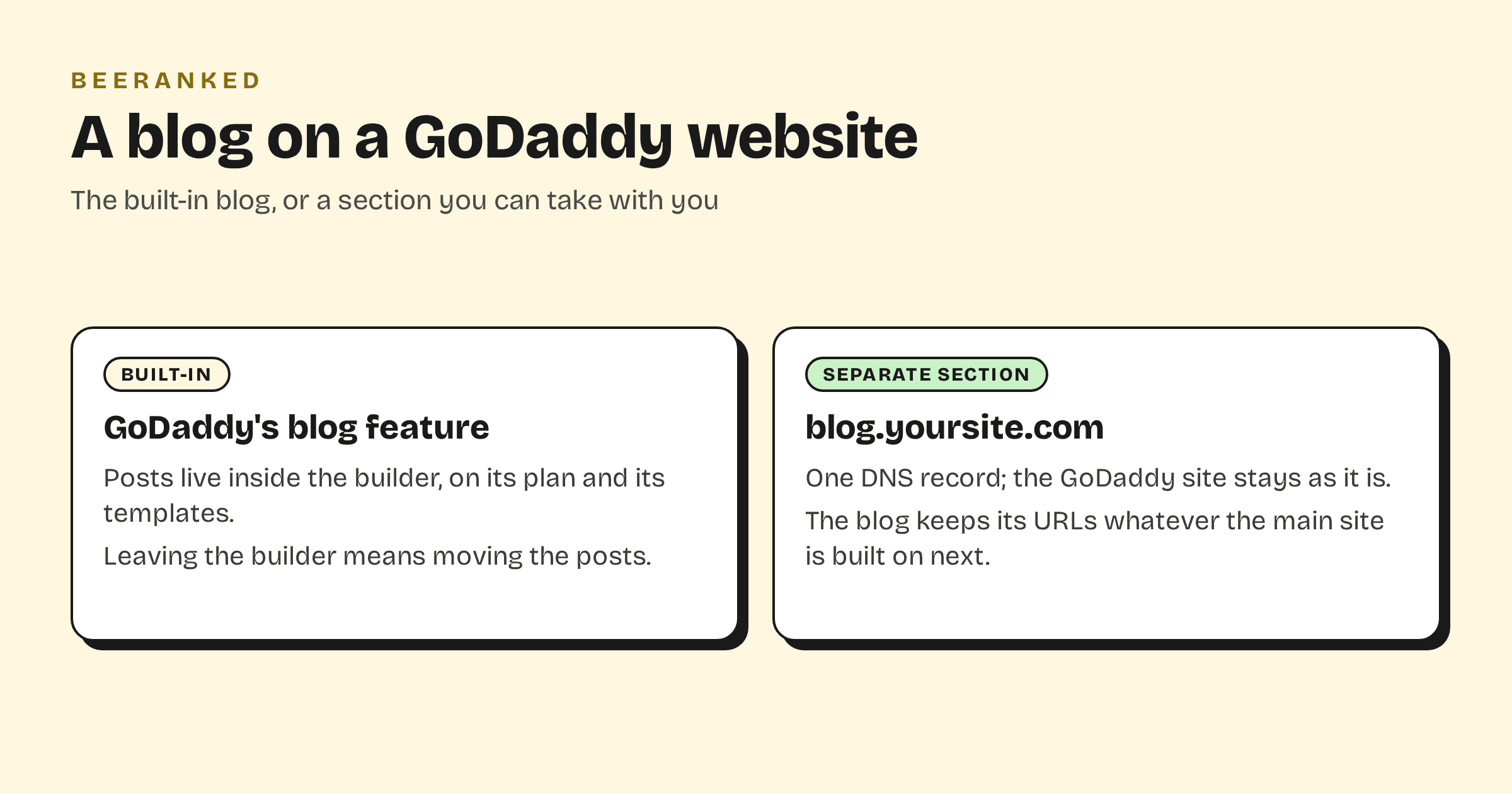
Use the built-in blog for announcements, event write-ups and the kind of post whose readers already know you. Use a separate section when the articles are meant to be found by strangers, when each one needs its own title and description, and when you want the archive to survive a move to another builder; a subdomain keeps its URLs whatever yoursite.com is built on next. The trade-off between a subdomain and a subfolder, and Google's written position ("do whatever makes sense for your business", Google Search Central), is in Subdomain or subfolder for your blog.
The wider guide, with every builder side by side, is How to add a blog to the website you already have.