Add a blog to a Squarespace site
By BeeRanked · October 20, 2026
Squarespace includes a blog page, and it is a good one for a site that publishes now and then. A blog meant to bring search traffic tends to want more sections than a blog, several languages, redirects that take care of themselves, and a writing tool built around search. Every statement about Squarespace below is quoted from Squarespace's own help centre, fetched in September 2026.
What Squarespace's blog is
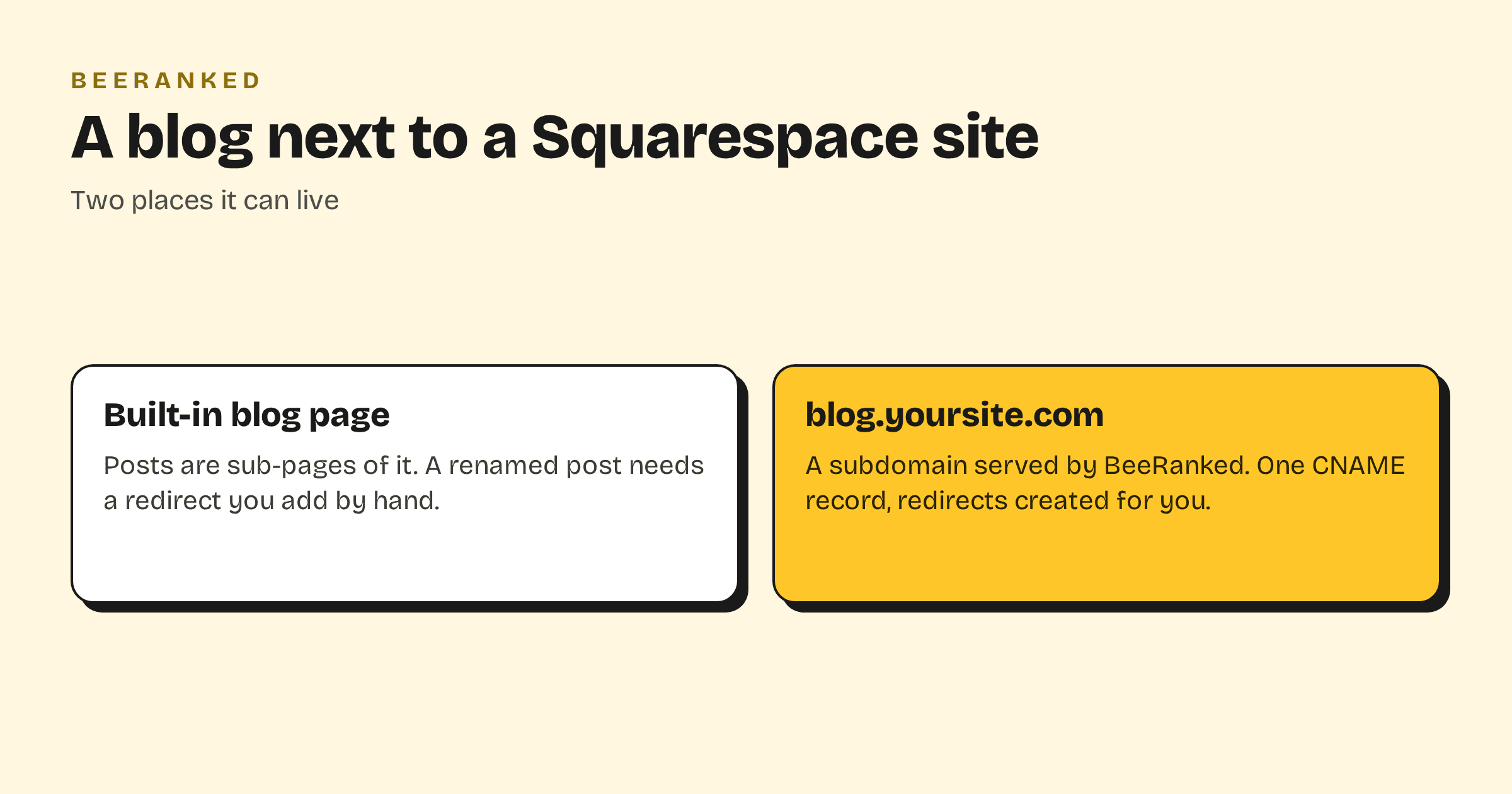
Adding one takes a few clicks: "Open the Pages panel, then click the + icon", then "Under Showcase, click Blog." Posts hang off that page: "Blog posts are sub-pages of a blog page. Each blog post has its own page and dedicated URL", and "You can have multiple blog pages on your site."
The address follows the page: "Blog post URLs always begin with the blog page URL slug. The rest of the slug is set by the post title and the default post URL format in the Blog preferences panel, but you can edit this part of the slug manually." Limits are generous for posts and firm for pages: "You can add up to 1000 pages to any of our current Squarespace plans", with "No limit for the number of blog posts you can add to a blog page".
Two lines from the help centre matter for search. The first: "If you change a page's URL slug, traffic won't automatically redirect to the new URL." Every renamed post needs a redirect you add by hand. The second: "It's not possible to update your Squarespace blog via an XML-RPC client", so the blog is written inside Squarespace and nowhere else.
A subdomain with one DNS record
Squarespace does not document serving an outside blog under a path of a Squarespace site, and there is no proxy of your own to configure, so the blog goes on a subdomain. Squarespace's help centre suggests the same thing for its own products: "Enhance your brand by creating a subdomain for your blog or store."
In BeeRanked, open Settings, then Connect your site, choose Subdomain and type the name, for example
blog.yoursite.com.At your domain's DNS host, add the record BeeRanked shows: a CNAME named
blogpointing atconnect.beeranked.online, DNS only. If Squarespace manages your domain, the record goes in your Squarespace domain settings.Wait for the status to read Ready, then click Set as active.
Add a link to the blog in your Squarespace navigation and link back to your Squarespace pages from the articles. Serving on your own domain is a paid BeeRanked feature; the free plan publishes at a BeeRanked address.
What changes for the writing
The two limits above disappear. When a URL changes in BeeRanked, the redirect is created for you and the internal links pointing at the old address are rewritten. Writing can happen in the studio, from an AI agent through MCP, or by importing an existing blog through its sitemap or feed. Beyond posts, the same section can hold guides, documentation or any custom type you define, and articles can be translated into up to seven languages with the hreflang tags in place.
Every page comes with its structured data, an automatic sitemap and clean HTML that search engines and AI crawlers read without effort.
Which to choose
Keep the Squarespace blog if you post occasionally and the URL rarely changes. Move the blog to a subdomain when search traffic is the goal and the content will grow into sections. The trade-off between a subdomain and a subfolder, and what Google has said about it, is in Subdomain or subfolder for your blog; the wider guide is How to add a blog to the website you already have.